Logging in for the First Time
In order to connect to SRCP, you will need the following things:
CRSid and associated password (AKA Raven account/password), which should have been provided to you as part of the Visiting Workers process
Complete the SRCP User Access Request - you will be asked to “Log in with Raven”, use your CRSid and password. To complete the access request form you will also need the following information:
SRCP platform type = vHPC
User’s vHPC Level of Access = Project User
Project Unique ID = will be provided by the data management team
Connection to the Cambridge University VPN (instructions here) or a computer that is on the Cambridge University Network
The address of the epi-analysis SRCP platform: epi-analysis.srcp.hpc.cam.ac.uk
A mobile device to set up for two factor authentication
If you need help with any of this information, please contact us (srcpdata@mrc-epid.cam.ac.uk)
Configuring Two Factor Authentication
SRCP uses two factor authentication. The first time log in is attempted by going to epi-analysis.srcp.hpc.cam.ac.uk, the following steps are needed:
Install the Two Factor Authentication application
Retrieve the Token
Configure the Application
Preparing Your Phone for Two Factor Authentication
There are several steps needed to configure your phone for use with SRCP.
Securing Your Phone
Information on securing your device is in the SRCPS User Security Policy. Please ensure this has been read and understood this before proceeding with configuring two factor authentication access.
Installing a Two Factor Authentication Application
An application is needed to generate the one time login tokens which enable access to SRCP.
We support several mobile applications for both Android and iPhone:
Application |
iPhone |
Android |
|---|---|---|
FreeOTP |
||
Google Authenticator |
Retrieving Your Token
Adding a Token to a Mobile Phone
Connect to the Cambridge University VPN and go to the login page
Upon browsing to this page the user will be presented with a login page:
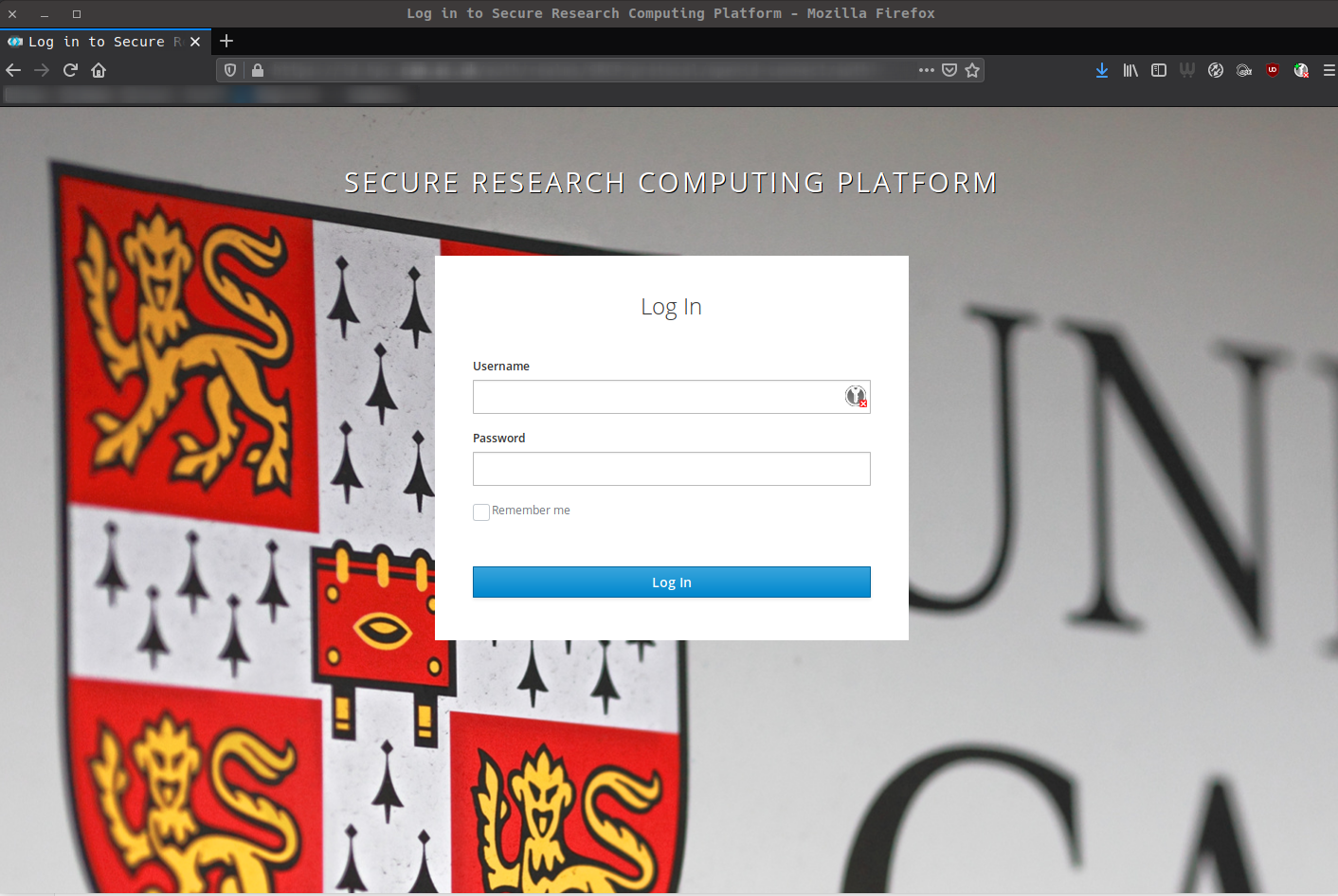
Here the user should enter their credentials to proceed - the CRSid and Raven password.
If this is the first time theuser has attempted to in they will be presented with a prompt to configure Two Factor Authentication. It will look similar to the image shown below.
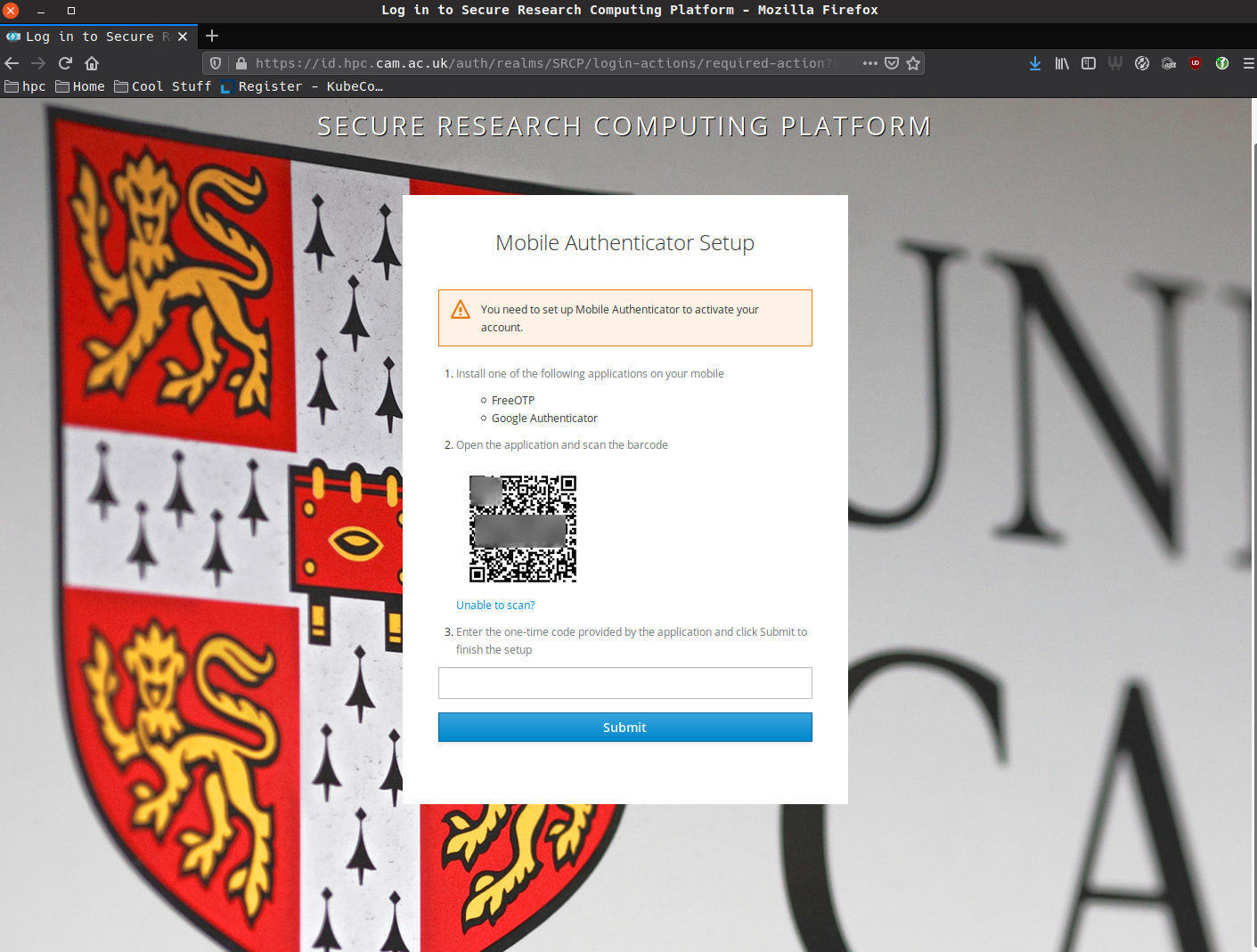
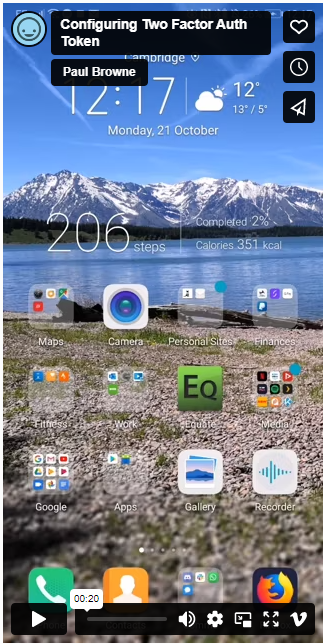
The page has a barcode on it, which can be scanned by a Two Factor Authentication management application. There is a video below showing this process for an Android handset:
What to do if you have lost or have a new device
If you have lost your mobile device or have a new device and need to set it up please submit a support request to the SRCP helpdesk. Please also notify the Epidemiology Unit team whom the SRCP helpdesk contacts for approval. The SRCP helpdesk will set up a video call to confirm the identity of the user.
Once the Epidemiology Unit has approved the token reset request and the user has demonstrated ownership of their password the Helpdesk will issue a new private token.