Running applications through the remote desktop
The remote desktop provides an interactive session for users. This allows the use of applications such as RStudio and Jupyter. Please open a support ticket if the software you need is not available.
Note
The SRCP platform is isolated from the internet to prevent data from being removed. Common package repositories such as CRAN and conda forge have been whitelisted so that packages can be installed by the user from these locations. If you require code that is held in GitHub, this will need to be brought into SRCP via the Data Transfer process as a zip file (see Taking files in and out of the SRCP). Similarly, Docker containers will need to be brought in and run through Singularity/Apptainer. The reason for this is that we cannot allow direct access to GitHub and DockerHub as this would give users the ability to remove data without permission by pushing to these locations.
Running applications
Most applications are started from the command line prompt ($) in a Terminal window.
Basic file editing
From the command line, vim can be used to edit files, but can be rather challenging to use. An alternative is to use gedit from the command line which will load the file into gedit which is a more user-friendly interface.
Unzipping files
The 7za application is provided for zipping and unzipping files. For example, to unzip a file from the command line:
$ 7za x myfile.zip
Viewing Images
Use the ristretto application which can be launched by double clicking an image file from File Manager or from the command line:
$ ristretto
RStudio
Find the RStudio module:
$ module availor$ module keyword studioand load it with$ module load xxxxxxwherexxxxxxis the full module nameStart RStudio
$ rstudio --no-sandboxThe RStudio window should open
Set default CRAN
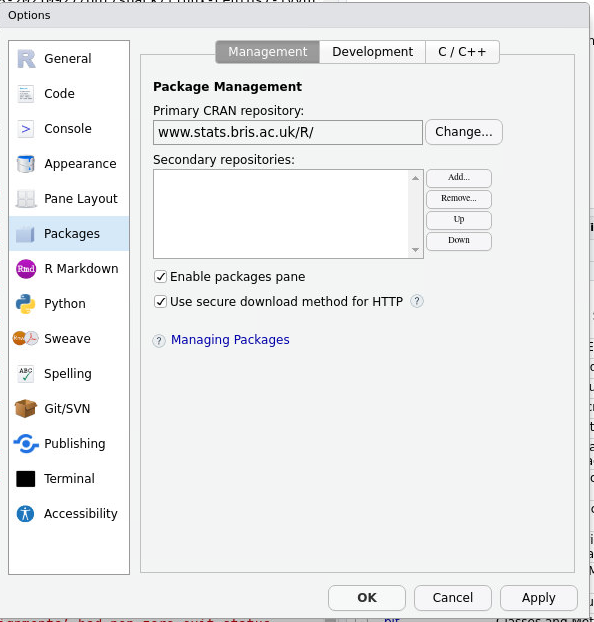
For easier package installation, set your default CRAN to https://www.stats.bris.ac.uk/R or https://cran.ma.imperial.ac.uk/ in the Tools -> Global Options menu (only needs to be done once):
R Package Installation
While general access to the internet is not available, it is possible install R packages from the UK CRAN mirrors at Bristol and Imperial using a command like > install.packages("my_package", repo = "www.stats.bris.ac.uk/R"). If you have set the default CRAN (as described above), the repo= part can be left out. If you require a package that is not available on CRAN, then please open a support ticket.
R packages are often not written entirely in R, but in low-level, compiled languages, most typically C++ and Fortran, for speed. This requires various compilers, headers and libraries for the packages to compile properly. On SRCP, these might have to be loaded as separate modules before you start R. For example, you might see an error like this:
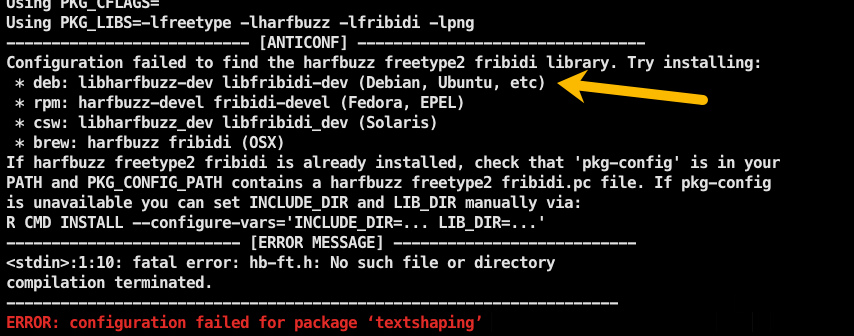
This describes the library that is missing. You can search for a module that provides the library by doing $ module keyword harf or similar and then load the module that is found with $ module load xxxxxx where xxxxxx is the module name (e.g. harfbuzz/4.2.1/gcc). Note that in this example there are 2 libraries needed - harfbuzz and fribidi. Both of the corresponding modules will need to be loaded before starting RStudio. Generally, once the package has been installed, you will not need to load these modules for subsequent sessions.
Bioconductor
Bioconductor can be installed in the usual way as the necessary repositories have been whitelisted. You may need to set the default CRAN in your options as described above.
Python
The SRCP provides a central installation of Python 3. Some of the most common packages used for scientific computation and data analysis (e.g. pandas) are available as modules. To view the packages available as modules, search for the keyword “python” $ module keyword python and load the module required as usual.
If additional packages are required, it is recommended that this is done through Conda environments. While venv is available to provide environments and pip to install packages, access to the pypi repository is currently disabled. If you need to install packages from pypi, please open a support ticket. It is likely that these can be made available as modules.
Conda
Find the full miniforge module name:
$ module availor$ module keyword condaand load it with$ module load xxxxxxwherexxxxxxis the full module nameWhile general access to the internet is not available, it is possible install packages from the
conda-forgechannelIf you require a package that is not available on
conda-forge, then please open a support ticket.
JupyterLab for Python
Several options exist for running JupyterLab (notebooks etc) on the SRCP:
Create a Conda environment, and install JupyterLab packages alongside other packages required in that environment
Load JupyterLab and other packages required as modules
Load JupyterLab as a module, create a kernel for the Conda environment, install other packages required in the environment
JupyterLab in a Conda environment (recommended)
Create a Conda environment:
$ conda create -n my-conda-envActivate the environment:
$ conda activate my-conda-envInstall jupyter in the environment:
$ conda install jupyterlabInstall other packages as required
Start JupyterLab:
$ jupyter lab
JupyterLab as a module (no virtual environment)
Find the py-jupyterlab module:
$ module keyword jupyterand load it with$ module load xxxxxxwherexxxxxxis the full module name- Load other modules required (e.g. pandas):
$ module load py-pandas/1.5.3
Start JupyterLab:
$ jupyter lab- a browser window should open
JupyterLab as a module with Conda environment
To do
Stata
Stata is not available by default as a paid license is required. Open a support ticket if you would like to pay for Stata access.
Once approved:
Find the full Stata module name:
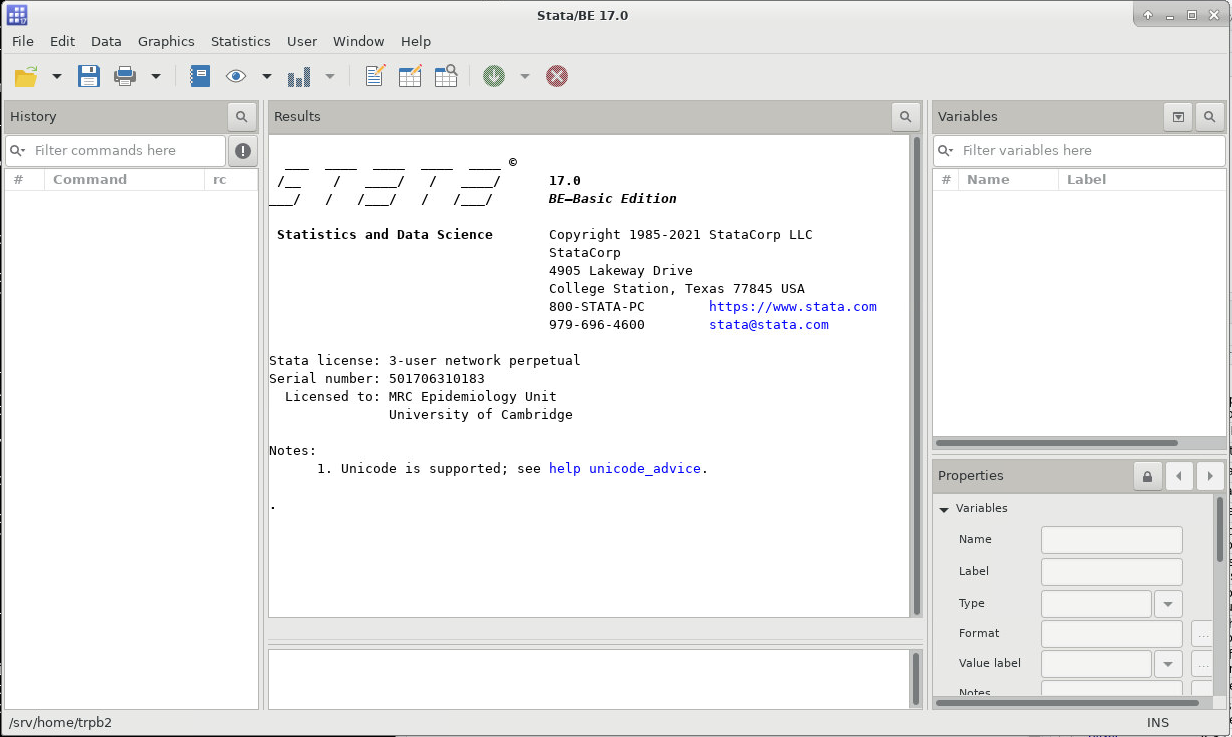
$ module keyword stataand load it with$ module load xxxxxxwherexxxxxxis the full module nameStart Stata:
$ xstatafor the basic edition or$ xstata-mpfor Stata/MP
Apptainer (Singularity)
Containers can be brought into SRCP in the .sif format via the file transfer process. Apptainer is available from the command line:
$ apptainer exec lolcow_latest.sif cowsay moo
Genetics Tools
PLINK, vcftools and bcftools
These can all be loaded as modules. For example for PLINK:
$ module keyword plinkand load it with$ module load xxxxxxwherexxxxxxis the full module name
Then PLINK can be run as normal
METAL, REGENIE, SNPTest
These executables can be imported throught the file transfer process
Variant Effect Predictor
TBC - (https://www.ensembl.org/info/docs/tools/vep/index.html)